Install
Claude (web, desktop, mobile)
- Open Settings → Connectors → Add custom connector.
- Name it Image Annotate and enter
https://image-annotate-mcp.vercel.app/mcp. No sign-in is needed. - In a chat, turn it on under + → Connectors.
On Team and Enterprise plans an organisation owner may need to add the connector first.
ChatGPT
- Settings → Apps → Advanced settings: turn on Developer mode.
- Create app: MCP server URL
https://image-annotate-mcp.vercel.app/mcp, authentication None.
Claude Code · Codex · other MCP clients
Add the remote MCP server (Streamable HTTP) at https://image-annotate-mcp.vercel.app/mcp, for example claude mcp add --transport http image-annotate https://image-annotate-mcp.vercel.app/mcp. The interactive UI shows only in hosts that support MCP Apps.
How to use
- Ask:
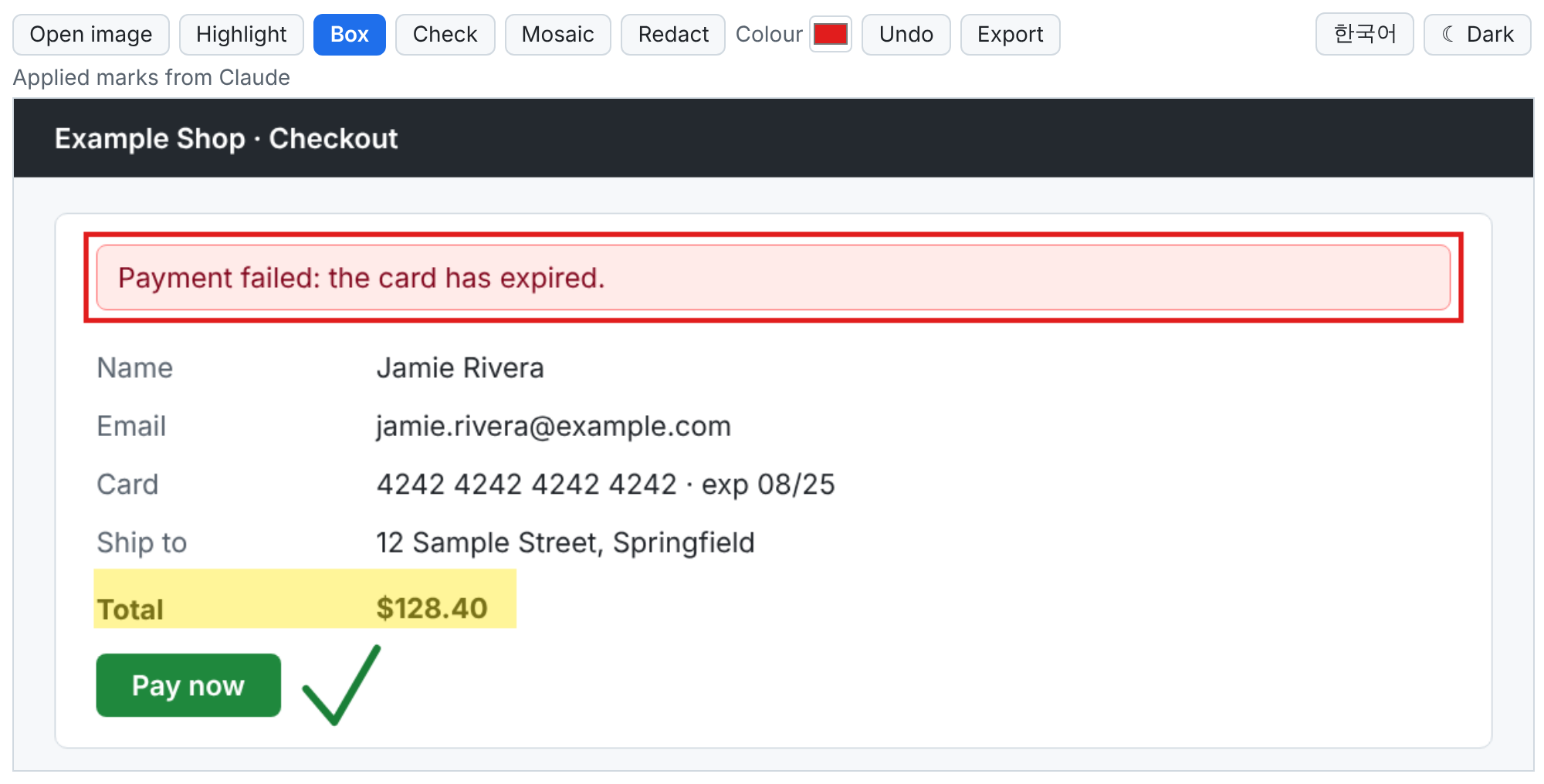
Open the image annotator.
- Paste a screenshot (Ctrl+V / ⌘V), drop it, or pick a file inside the app.
- Choose a tool (highlight, box, check, mosaic, redact), colour or mosaic strength, and drag over the area. The dimmed preview shows what will be marked.
- Or ask the agent:
Mosaic the email address
, Box the error message in red
. - Export saves a PNG. Undo reverts the last mark.
Tools
| Tool | What it does |
|---|
open_annotator | Opens the annotator. |
apply_marks | Draws marks the agent chose (pixel rectangles) on the image you loaded. |
Good to know
- For passwords, card numbers and IDs use redact (solid box). Mosaic can sometimes be partly reversed.
- Images larger than 24 megapixels are scaled down.
Your data
- The image. Stays in your browser, inside the app. It is never uploaded to our server. To let the agent mark it for you, the app shares the image with the AI model of the chat app you use (for example Claude or ChatGPT) through that app's model context. That copy is handled by the chat app's provider under its own privacy policy, as with any image you attach to a chat.
- Agent marks. When the agent marks the image, the chat app sends us only the mark positions, types and colours (numbers, no image). We use them to answer the call and do not keep them.
- Data stored on your device. Your language and theme choice, and a copy of the last image so the app can reopen it. That copy expires after 30 minutes and is deleted when you export. It is kept in your browser's local storage and never leaves your device.
Details: Privacy policy.
Support
Report bugs or ask questions on GitHub Issues. The app is free and needs no account.
한국어
스크린샷에 하이라이트, 네모, 체크, 모자이크, 가리기를 손으로 또는 에이전트에게 말해서 표시합니다.
설치
Claude (웹, 데스크톱, 모바일)
- 설정 → 커넥터 → 사용자 지정 커넥터 추가를 엽니다.
- 이름은 이미지 주석, URL은
https://image-annotate-mcp.vercel.app/mcp를 넣습니다. 로그인은 필요 없습니다. - 대화에서 + → 커넥터에서 켜고 사용합니다.
Team, Enterprise 플랜은 조직 소유자가 먼저 커넥터를 추가해야 할 수 있습니다.
ChatGPT
- 설정 → 앱 → 고급 설정에서 개발자 모드를 켭니다.
- 앱 만들기에서 MCP 서버 URL에
https://image-annotate-mcp.vercel.app/mcp, 인증은 없음을 고릅니다.
Claude Code · Codex · 기타 MCP 클라이언트
원격 MCP 서버(Streamable HTTP) 주소 https://image-annotate-mcp.vercel.app/mcp를 추가합니다. 예: claude mcp add --transport http image-annotate https://image-annotate-mcp.vercel.app/mcp. 화면(UI)은 MCP Apps를 지원하는 앱에서만 보입니다.
사용법
이미지 주석 앱 열어 줘
라고 요청합니다.- 앱 안에서 스크린샷을 붙여넣거나(Ctrl+V / ⌘V), 끌어다 놓거나, 파일을 고릅니다.
- 도구(하이라이트, 네모, 체크, 모자이크, 가리기)와 색상 또는 모자이크 강도를 고르고 영역을 드래그합니다. 드래그하는 동안 표시될 영역이 미리 보입니다.
- 또는 에이전트에게
이메일 주소 모자이크해 줘
, 오류 메시지에 빨간 네모 쳐 줘
라고 말합니다. - 내보내기를 누르면 PNG로 저장됩니다. 되돌리기는 마지막 표시를 취소합니다.
도구
| 도구 | 하는 일 |
|---|
open_annotator | 주석 앱을 엽니다. |
apply_marks | 에이전트가 정한 위치(픽셀 사각형)에 표시를 그립니다. |
알아 둘 점
- 비밀번호, 카드 번호, 신분증 번호는 가리기(불투명 상자)를 쓰세요. 모자이크는 일부 복원될 수 있습니다.
- 2,400만 화소를 넘는 이미지는 축소됩니다.
데이터
- 이미지. 브라우저의 앱 안에만 있습니다. 저희 서버로는 절대 올라가지 않습니다. 에이전트가 대신 표시할 수 있도록, 앱은 이미지를 사용 중인 채팅 앱(예: Claude, ChatGPT)의 AI 모델에 그 앱의 모델 컨텍스트로 공유합니다. 이 사본은 채팅에 이미지를 첨부할 때와 같이 해당 채팅 앱 제공자의 개인정보처리방침에 따라 처리됩니다.
- 에이전트 표시. 에이전트가 표시할 때 채팅 앱이 저희 서버로 보내는 것은 표시의 위치, 종류, 색상(숫자)뿐이고 이미지는 없습니다. 응답에만 쓰고 보관하지 않습니다.
- 기기에 저장되는 데이터. 언어와 테마 선택, 그리고 앱을 다시 열 때 복원하기 위한 마지막 이미지 사본입니다. 이 사본은 30분 뒤 만료되고 내보내기를 하면 삭제됩니다. 브라우저의 로컬 저장소에만 있고 기기 밖으로 나가지 않습니다.
자세한 내용은 개인정보처리방침을 보세요.
문의
버그나 질문은 GitHub Issues에 남겨 주세요. 무료이고, 계정이나 로그인이 필요 없습니다.